LocalSend software mark
LocalSend LAN sharing desk · LocalSend.dev
Home / guides
Skip to content

Help Center

LocalSend Troubleshooting & Guides

Practical fixes for LocalSend device not visible errors, firewall rules on port 53317, slow Wi-Fi transfers, receive PIN settings, antivirus false positives, and local network best practices so offline file sharing works reliably.

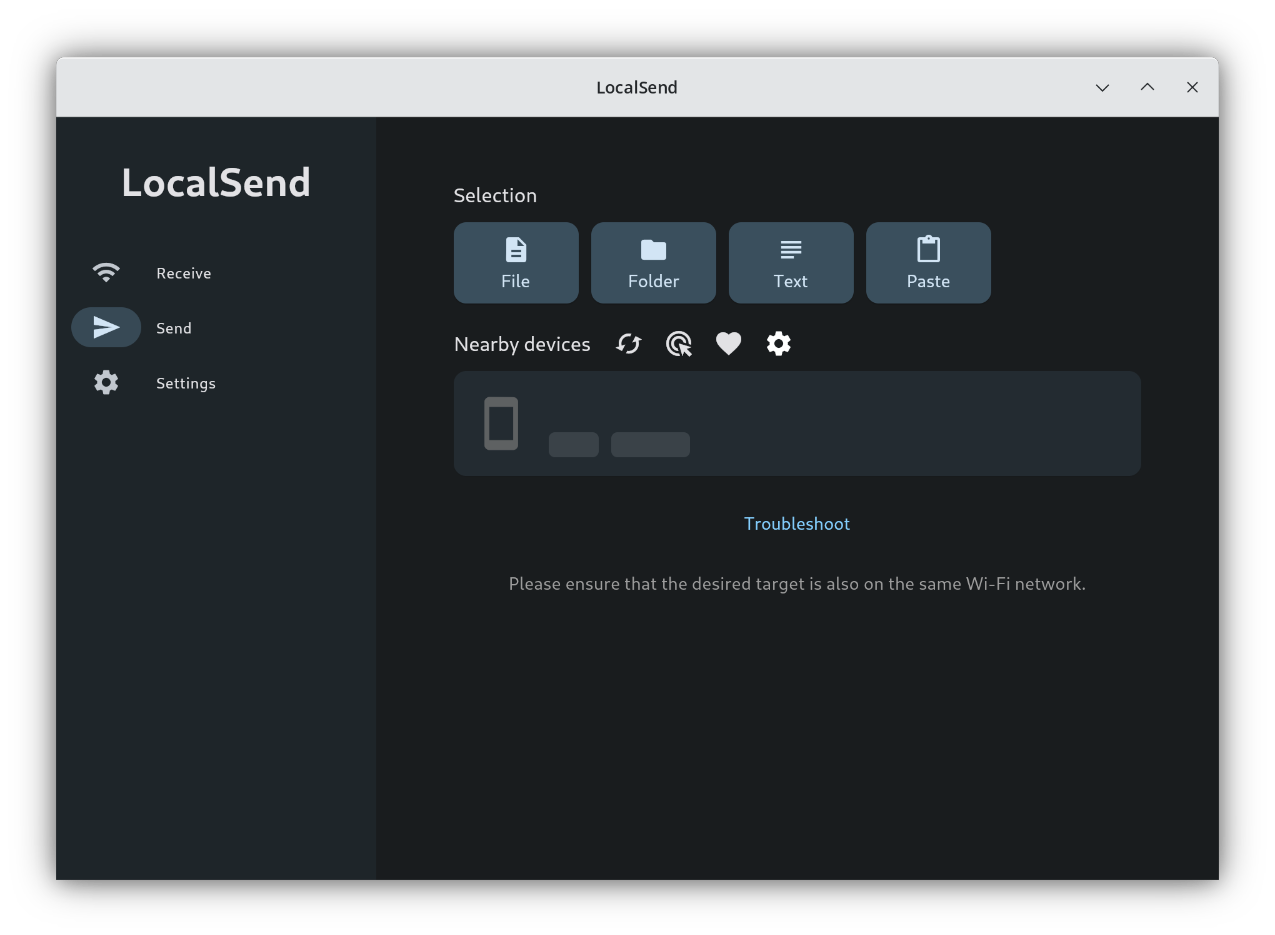
Device Not Visible

If nearby devices do not appear, LocalSend usually cannot reach them on the same network segment. Work through these steps in order.

  1. 1. Confirm the same network

    Both devices must be on the same Wi-Fi or LAN. Guest networks and AP isolation often block device-to-device discovery.

  2. 2. Open LocalSend on every device

    Keep the app running on sender and receiver. Discovery lists only active LocalSend peers.

  3. 3. Set Windows network to Private

    On Windows, Public profiles can restrict local discovery. Switch the active network profile to Private, then reopen LocalSend.

  4. 4. Disable VPN isolation temporarily

    Some VPNs place devices on separate virtual networks. Disconnect or split-tunnel local traffic, then retry discovery.

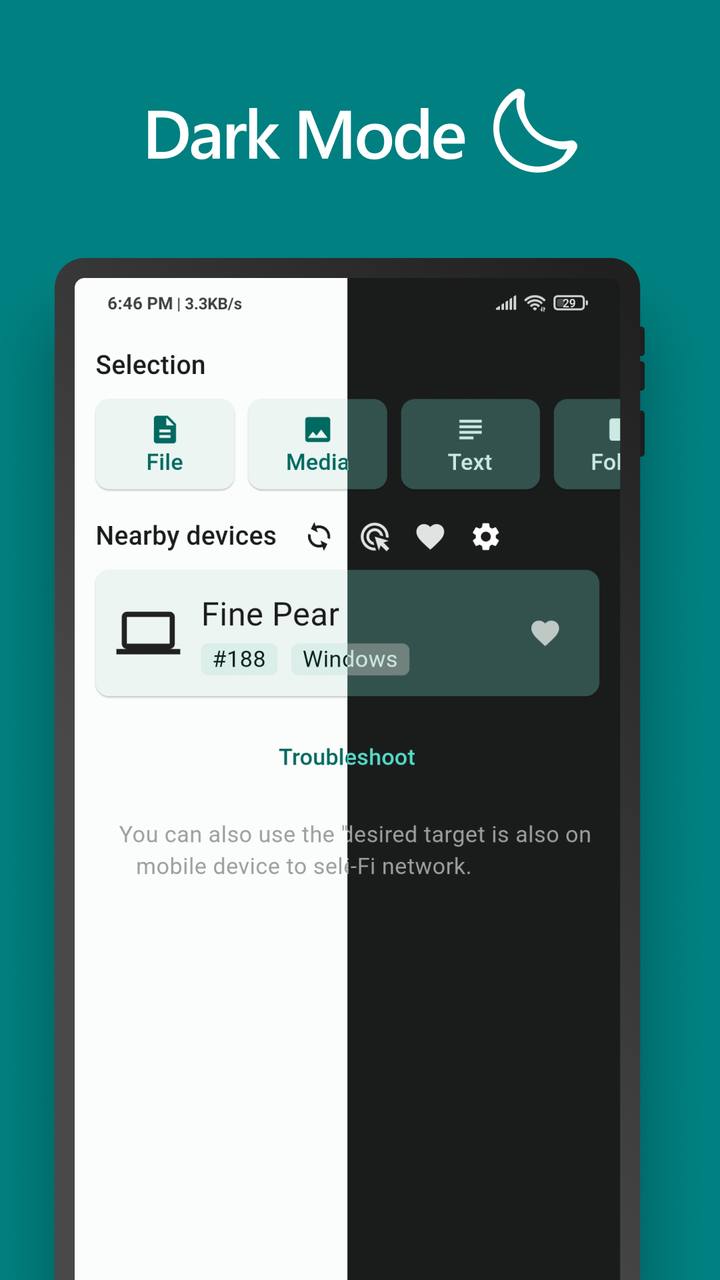
Discovery troubleshooting view for LocalSend peers - LocalSend.dev visual

Firewall Allow Rules

LocalSend communicates over your local network. If a firewall blocks the app, devices will not list each other and transfers will fail.

Recommended action

  1. Allow LocalSend through the OS firewall when prompted.
  2. Permit both inbound and outbound local network traffic for the LocalSend executable or app.
  3. On advanced setups, allow TCP and UDP on port 53317 for LocalSend communication.
  4. Retry discovery after saving firewall changes.
Common problems

  • Corporate policies: Managed devices may require an IT exception before LAN apps can accept connections.
  • Third-party suites: Extra security software can override the built-in firewall. Add LocalSend to its allow list.
  • Router AP isolation: Client isolation stops peer discovery even when the firewall is open.

Slow Transfers

LocalSend is limited by your local network quality, not by a cloud quota. Improve speed with these checks.

  • Move both devices closer to the access point or use 5 GHz Wi-Fi when available.
  • Pause heavy downloads, streaming, or backups that saturate the LAN.
  • Prefer wired Ethernet for desktop-to-desktop transfers of very large archives.
  • Avoid congested public hotspots with aggressive client isolation.
Send progress meter used in LocalSend speed guidance - LocalSend.dev visual

Receive Settings & Favorites

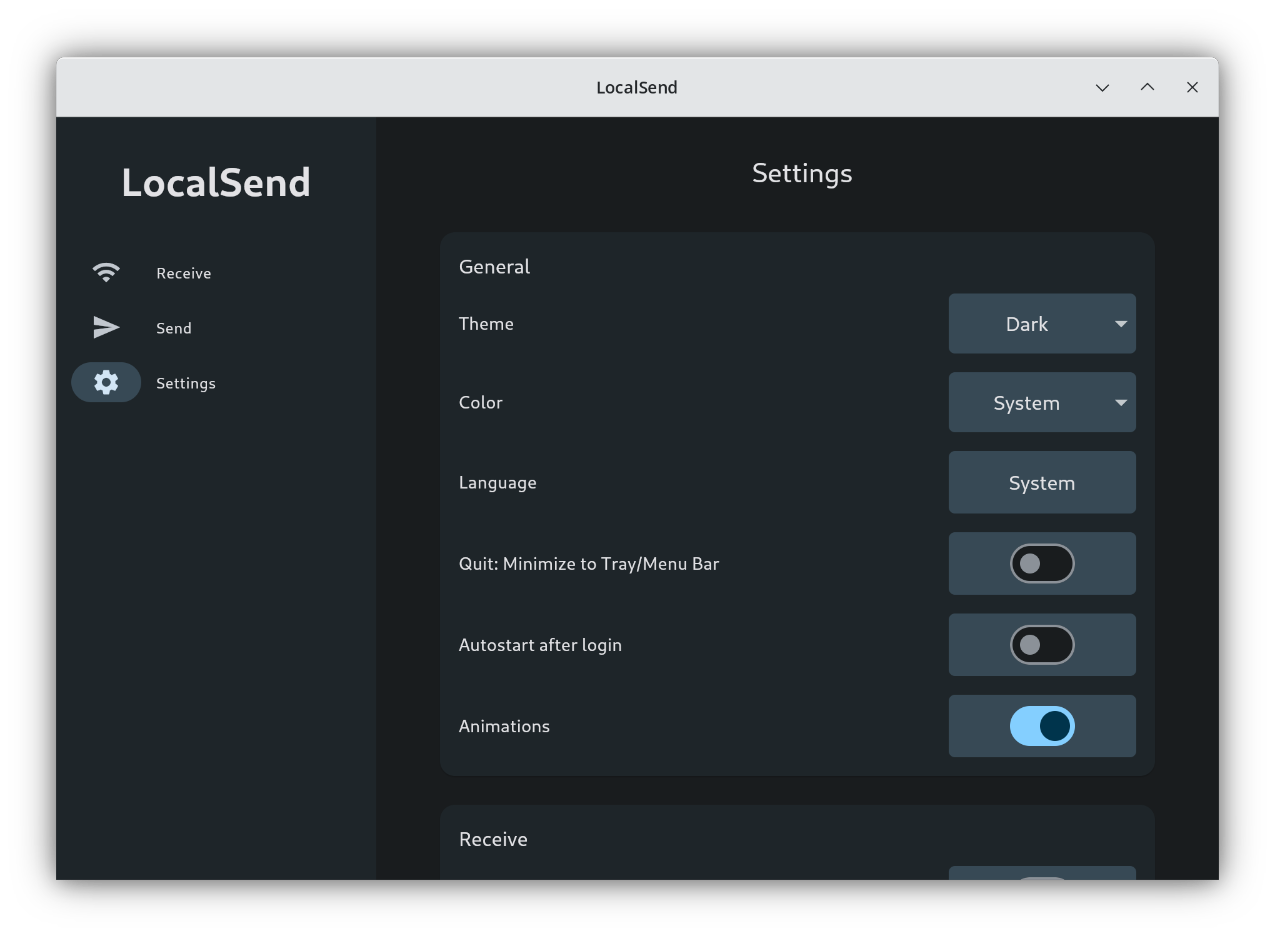
Settings workspace for LocalSend receive rules - LocalSend.dev visual

Confirm by default

Leave confirmation enabled on shared or public networks so unknown senders cannot push files silently.

PIN protection control inside LocalSend - LocalSend.dev visual

Enable PIN

Add a PIN when you want an extra gate before a receive session is accepted.

Receive confirmation dialog in LocalSend - LocalSend.dev visual

Use Favorites carefully

Auto-accept is convenient for your own phone and PC. Only favorite devices you fully trust.

Received files usually land in the device Downloads folder unless you change the save location in settings. Related questions are covered on the FAQ page.

Antivirus Warnings Explained

Security tools sometimes flag LocalSend because it listens for nearby devices and can transfer any file type. That behavior looks similar to other networking utilities and can trigger heuristic detections even when the package is clean.

What to do

  1. Stop and verify the installer hash against the published SHA256 on the Download integrity section.
  2. Confirm you obtained the package from the LocalSend.dev download page.
  3. Submit the file to your antivirus vendor as a false positive if the hash matches and the warning persists.
  4. Do not disable your entire antivirus suite permanently. Prefer a targeted allow rule for LocalSend.

Network Best Practices

Do

  • Use a private home or office Wi-Fi for routine sharing.
  • Keep LocalSend updated to the latest version from this site.
  • Review receive prompts before accepting unknown senders.
  • Use a phone hotspot when no trusted router is available.

Avoid

  • Expecting internet-wide transfers. LocalSend is local-network first.
  • Auto-accepting every device on a shared cafe network.
  • Installing unofficial reuploads without checksum verification.
  • Assuming guest Wi-Fi with AP isolation will allow peer discovery.

"Switching Windows to a Private network profile fixed discovery instantly."

Guide reader

"Firewall allow rule on port traffic brought both phones back into the list."

Home network user

"Favorites auto-accept is perfect after the initial trusted setup."

Daily workflow

"Switching Windows to a Private network profile fixed discovery instantly."

Guide reader

"Firewall allow rule on port traffic brought both phones back into the list."

Home network user

"Favorites auto-accept is perfect after the initial trusted setup."

Daily workflow

"Switching Windows to a Private network profile fixed discovery instantly."

Guide reader

"Firewall allow rule on port traffic brought both phones back into the list."

Home network user

"Favorites auto-accept is perfect after the initial trusted setup."

Daily workflow

"Switching Windows to a Private network profile fixed discovery instantly."

Guide reader

"Firewall allow rule on port traffic brought both phones back into the list."

Home network user

"Favorites auto-accept is perfect after the initial trusted setup."

Daily workflow